
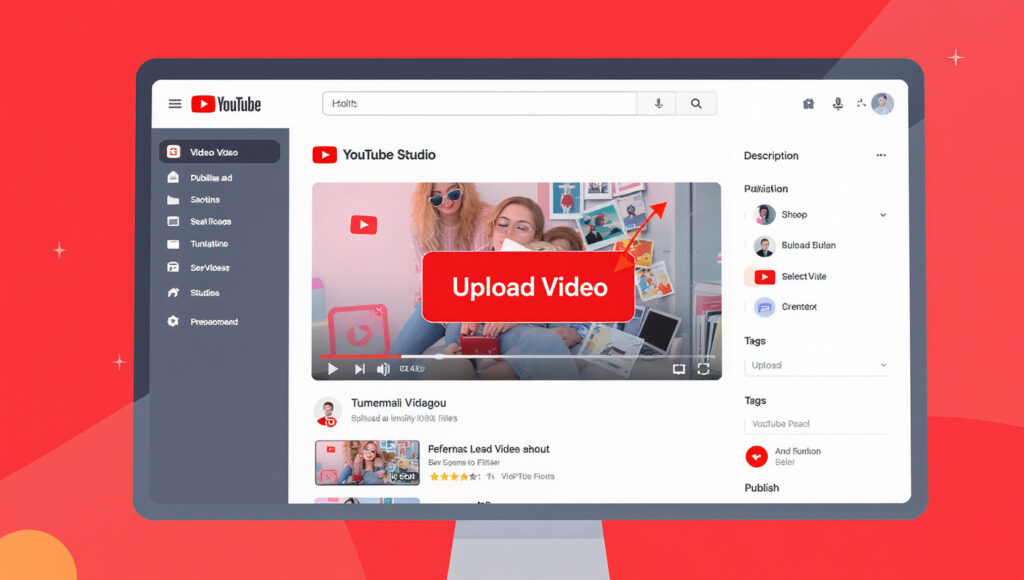
Uploading videos to YouTube is one of the best ways to share your ideas, promote your business, or build a personal brand online. Whether you’re using a phone or a computer, the process is simple once you understand the steps to how to upload video on youtube.
In this complete guide, we’ll go through how to upload video on YouTube step by step, how to optimize it for SEO, and how to make your uploads look more professional.
Why Learn How to Upload Video on YouTube?
YouTube is the world’s largest video platform, with over 2 billion monthly users. It’s more than a site for funny clips — it’s a global platform for education, marketing, and entertainment.
Here’s why learning how to upload a video on YouTube is important in 2025:
- Massive Audience Reach: Reach people across the world and build a loyal audience.
- Monetization Opportunities: Once your channel meets YouTube’s requirements (1,000 subscribers & 4,000 watch hours), you can earn from ads.
- Brand Building: Videos build trust and connection faster than text or images.
- SEO Benefits: YouTube videos often appear in Google search results, boosting your visibility.
Step 1: Sign In to Your YouTube Account
Before uploading, make sure you have a Google Account.
- Go to YouTube.com
- Click Sign In in the top-right corner.
- Enter your Google account details or create a new one.
- Once logged in, click your profile picture → YouTube Studio. That’s where all your video management tools are.
Step 2: Click the Upload Button
To start uploading your video:
- On desktop: Click the camera icon with a “+” sign at the top-right corner and select Upload Video.
- On mobile: Open the YouTube app, tap the “+” icon at the bottom, and choose Upload a Video.
You’ll now be directed to the upload interface.
Step 3: Choose the Video File You Want to Upload
Click Select Files and pick your video.
YouTube supports MP4, MOV, AVI, and WMV formats.
Once selected, YouTube will begin uploading your video in the background. You can start adding details while it uploads.
Step 4: Add a Title, Description, and Tags
This step is crucial for optimizing your video’s metadata.
1. Title
Create a clear, keyword-rich title.
Example:
“How to Upload Video on YouTube Step by Step (2025 Guide)”
Keep it concise (under 60 characters) and make sure it clearly tells viewers what they’ll learn.
2. Description
Write a detailed, keyword-focused description explaining what your video covers.
Example:
“In this tutorial, you’ll learn how to upload video on YouTube using a computer or phone. Follow this simple 2025 step-by-step guide to publish your first video.”
Include links to your social media, website, or related videos.
3. Tags
Tags help YouTube understand your video’s topic. Add relevant tags such as:
- how to upload video on YouTube
- YouTube upload steps
- YouTube tutorial 2025
- upload video from phone
Step 5: Select a Custom Thumbnail
Your thumbnail is what viewers see first, so make it eye-catching.
- Use a high-quality image (1280×720 pixels).
- Add short, clear text like “YouTube Upload Tutorial.”
- Keep it visually consistent with your channel’s style.
You can create thumbnails using Canva, Pixlr, or Adobe Express.
Step 6: Choose Audience Settings (For Kids or Not)
YouTube requires you to indicate if your video is made for kids.
- If your content is for general audiences, select “No, it’s not made for kids.”
- If it’s for children, choose “Yes, it’s made for kids.”
This determines how ads and comments appear on your video.
Step 7: Add Video Elements
Make your video interactive and engaging by adding:
- Cards: Suggest related videos or playlists mid-video.
- End Screens: Add a “Subscribe” button or links to other videos.
These features help improve watch time — a key ranking factor for YouTube.
Step 8: Set Video Visibility and Publish
Choose how your video will appear:
- Public: Visible to everyone immediately.
- Unlisted: Only accessible with the link.
- Private: Only you can view it.
- Schedule: Set a date and time for automatic publishing.
Once everything looks good, click Publish.
🎉 Congratulations — your YouTube video is live!
Step 9: Uploading from Mobile (Android/iPhone)
If you prefer uploading via your phone, here’s how:
- Open the YouTube app.
- Tap the “+” icon at the bottom.
- Choose Upload a Video.
- Pick your video from your gallery.
- Add your title, description, and visibility settings.
- Tap Upload or Next to publish.
For the best results, film in landscape mode with good lighting.
Step 10: Optimize After Upload
Uploading is just the first step — optimization helps your video perform better.
- Add to Playlists: Organize by topic to increase watch time and retention.
- Engage in Comments: Reply to viewers to boost interaction.
- Share on Social Media: Promote your video on platforms like Facebook, Instagram, LinkedIn, and Reddit.
- Use YouTube Analytics: Go to YouTube Studio → Analytics to track:
- Views & impressions
- Watch time
- Click-through rate (CTR)
- Traffic sources
- Views & impressions
These insights help you improve future uploads.
Bonus Tips: Uploading Quality Content That Performs Well
- Naturally use SEO keywords in your title, tags, and description.
- Upload in HD or 4K for better quality.
- Keep intros short — hook viewers within 10 seconds.
- Add subtitles or captions for accessibility.
- Stay consistent — regular uploads help grow your channel.
Common Problems When Uploading (and Fixes)
- Slow upload speed: Compress your video with HandBrake or upload during off-peak hours.
- Video stuck processing: Be patient — HD and 4K videos can take longer.
- Copyright claims: Use free music from YouTube’s Audio Library.
- Audio/video out of sync: Convert your video to MP4 before uploading.
Conclusion: Start Uploading Your Videos on YouTube Today
Learning how to upload videos on YouTube is your first step toward becoming a creator. Once you understand the basics — signing in, optimizing, and publishing — you can start building an audience, promoting your brand, or even earning money.
Remember: Consistency, creativity, and SEO optimization are the keys to success. Follow these steps, keep improving, and soon your content will start gaining traction.
So, grab your camera, record your idea, and upload your first YouTube video today!